Chrome Now Warns Before Opening HTTP Sites
Chrome's HTTP warning is now a default protection. Here's what changes for visitors, why some sites are exempt and what website owners should check.
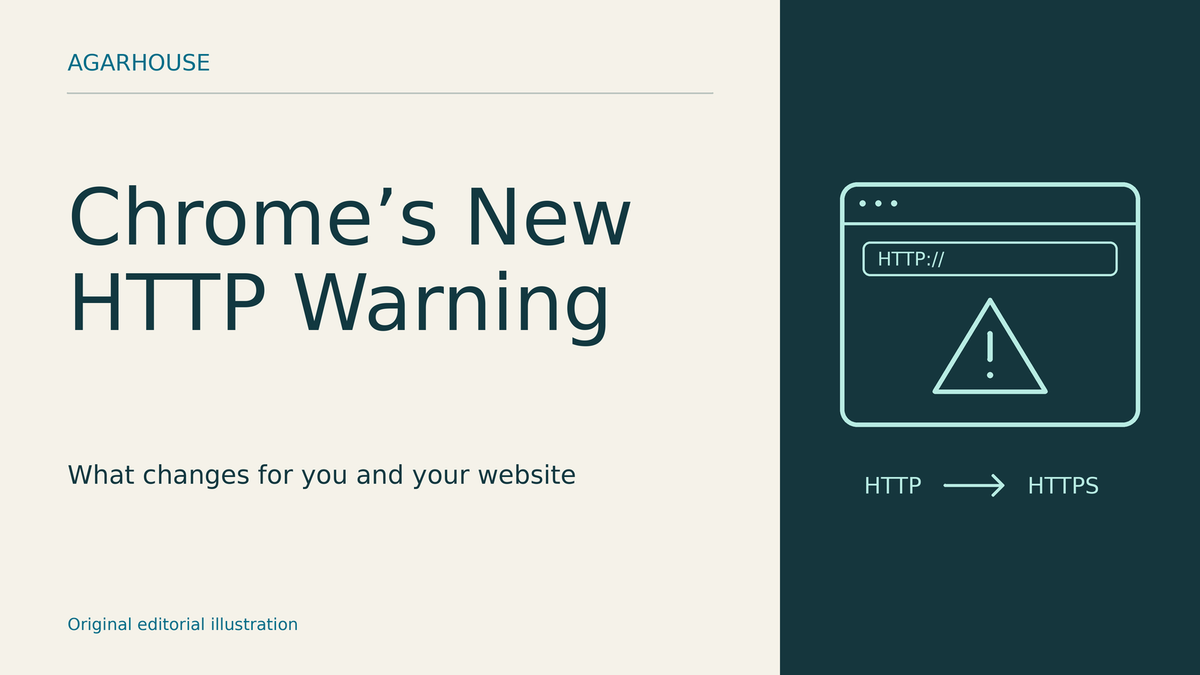
Google has made Chrome's warning for insecure HTTP websites a default protection. The company confirmed the wider rollout on October 21. An old bookmark or link can now lead to a permission prompt before the page opens, although previously approved sites and some local addresses are exempt.
The change appears in the Chrome 154 release notes, which give September 22 as that version's stable release date. October's announcement confirms the rollout rather than announcing a new browser release.
Why Chrome pauses
Chrome first tries to use HTTPS, which encrypts the connection. If that works, an old http:// link can open securely without a warning. The prompt comes when Chrome would otherwise fall back to an insecure connection. This protection concerns opening the main page in a browser tab, rather than asking permission for every file a page loads.
With plain HTTP, someone in a position to interfere with your network traffic may be able to read or change what passes between you and the site. Waiting for permission gives you a chance to stop before that connection is made.
The warning concerns the connection. It does not establish that the website contains malware. Chrome's red Safe Browsing danger screen and its certificate or privacy errors are different warnings, as Google's connection-security guide explains.
HTTP sites remain accessible if you approve the connection. Google says Chrome will not show this HTTP warning again until you have gone at least two weeks without visiting it. That is different from asking again every two weeks while you use it regularly.
The default also skips warnings for single-name addresses such as intranet/ and local IP addresses such as 192.168.0.1, often used for a router's settings. Those exceptions do not make the connection encrypted.
What to do when you see it
Leave the protection enabled and check the address before deciding whether to continue. Avoid entering passwords, payment details or other sensitive information on an insecure page. If a site you need has no working HTTPS connection, its owner needs to fix that.
Keep checking the domain even when HTTPS works. Encryption protects information in transit, but it does not establish that the person running the website is honest or that you have reached the business you intended.
On desktop Chrome, open Settings, then Privacy and security, then Security. Under Secure connections, look for Always use secure connections. Google's settings guide describes options for warning on public sites only or on both public and private sites. On a managed work or school browser, an administrator can control the behavior through policy.
If you run a website
Start with your hosting provider. Many hosts can obtain and manage HTTPS certificates for you, either automatically or through a setting you enable. Let's Encrypt recommends checking the provider's documentation before deciding whether you need to manage certificates yourself.
Check that HTTPS works on the addresses people actually use, including your main domain, its www version and important subdomains. Confirm who handles certificate renewal. Once the secure versions work, redirect HTTP visitors to them and update links you control. A redirect cannot repair a broken HTTPS destination.
Check the content inside the pages too. Old images, scripts or other resources may still use HTTP even after the page itself moves to HTTPS. Google's mixed-content guidance explains how to find those requests in Chrome's developer tools and in your site's source or content management system. Verify that replacement HTTPS addresses work, make the changes, then recheck the affected pages.
For a small website, that is the useful response to this change: get HTTPS working across the site, rather than asking visitors to dismiss the warning.
Sources
- Google: Chrome's HTTP warning rollout and exceptions
- Chrome for Developers: Chrome 154 release notes
- Chrome Help: Secure connection settings on a computer
- Chrome Help: Understanding connection and security warnings
- Let's Encrypt: Certificates through your hosting provider
- web.dev: Enabling HTTPS and redirecting HTTP traffic
- web.dev: Finding and fixing mixed content
- Chromium: HTTPS-First navigation behavior and browser tests


Comments ()