Undo Git Changes Without Guesswork: A Disposable Restore Lab
A one-file practice lab makes Git’s staged and unstaged changes visible, so you can choose what to undo before touching a real project.
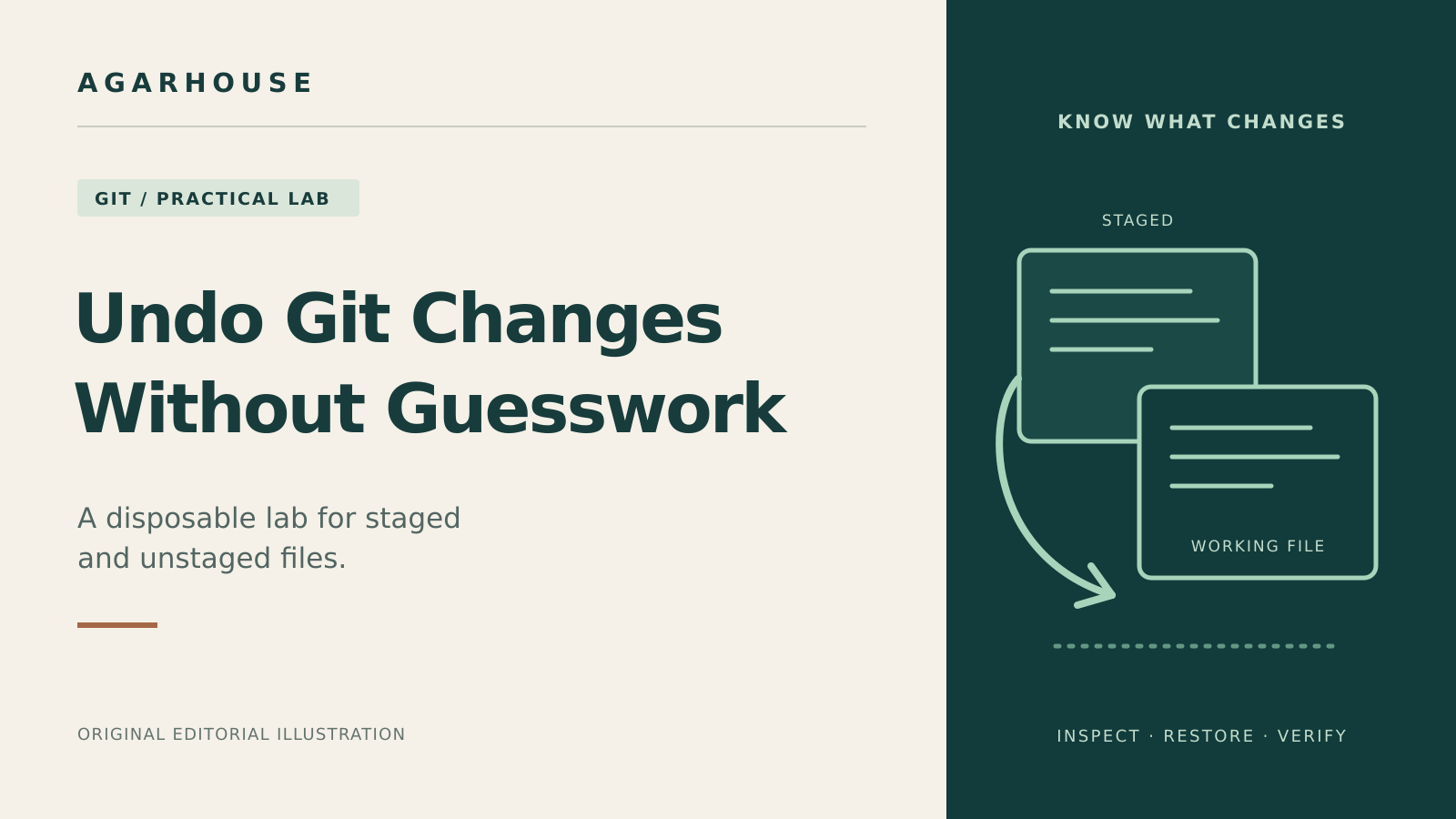
You staged a useful change, made another edit, and now want to undo only the second one. Which version will Git bring back? A small practice repository makes the answer visible before you try it on a real project.
This lab uses one setting with three possible values: blue, green, and red. You will discard a disposable edit, unstage another without losing it, and see why a plain git restore does not always return a file to its last commit. Nothing is pushed online.
Before you start
Use a Linux terminal running Bash with Git 2.23 or newer. Check git --version first. The complete lab was tested on Debian 13 with Git 2.52.0, with 12 checks covering file contents, staging, and unchanged commit history. macOS and Windows were not tested; these shell commands are not PowerShell instructions.
Run the blocks in order, in the same terminal. Stop if a command reports an error instead of continuing into the next block. Everything below belongs in the new temporary repository, not an existing project.
Keep three places in mind: the working file is what you edit; the staging area, also called the index, holds the version selected for the next commit; HEAD identifies the current commit. They can contain different versions of the same file.
1. Make a throwaway repository
Create a unique temporary folder and print its location so you can find it later:
lab=$(mktemp -d "${TMPDIR:-/tmp}/git-restore-lab.XXXXXX")
printf 'Lab folder: %s\n' "$lab"
cd "$lab" || exit
git init -q
git config user.name 'Restore Lab'
git config user.email 'restore-lab@example.invalid'
git config commit.gpgsign false
printf 'color=blue\n' > settings.txt
git add -- settings.txt
git commit -qm 'Save the starting settings'
git status --short
The identity and signing settings apply only to this practice repository. No global Git settings are changed. The last command should print nothing: the saved commit, staged version, and working file all contain color=blue. Keep the printed folder path.
2. Discard an unstaged practice edit
Change blue to green, then inspect the difference:
printf 'color=green\n' > settings.txt
git status --short
git --no-pager diff -- settings.txt
Status should show M settings.txt, including a space before the M. The diff shows blue removed and green added. Here, plain git diff compares your working file with its staged version.
Warning: the next restore overwrites the working file. It deliberately discards the green practice edit. In a real project, inspect both the ordinary and staged diffs and save any work you need separately before discarding anything. Do not assume Git can recover an edit you never saved in its history.
git restore -- settings.txt
cat settings.txt
git status --short
You should see color=blue, followed by no status output. This worked because the staged copy was still blue. The explicit filename limits the operation to this file; do not replace it with a dot or wildcard while learning.
3. Unstage a change without throwing it away
Make green again, but this time stage it:
printf 'color=green\n' > settings.txt
git add -- settings.txt
git status --short
git --no-pager diff --staged -- settings.txt
Status now shows M settings.txt. The first column represents the staged change; the second represents an unstaged change. The staged diff compares your selected next-commit content with HEAD.
Suppose you want to keep editing before including this file in the next commit. Unstage it:
git restore --staged -- settings.txt
cat settings.txt
git status --short
git --no-pager diff --staged -- settings.txt
The file still says color=green. Status returns to M settings.txt, and the staged diff is empty. You changed what is staged, not the text in your working file.
4. Put three different versions side by side
Stage green once more, then edit the working file to red without staging that new edit:
git add -- settings.txt
printf 'color=red\n' > settings.txt
git status --short
git --no-pager diff -- settings.txt
git --no-pager diff --staged -- settings.txt
Status should read MM settings.txt. The ordinary diff shows green becoming red. The staged diff shows blue becoming green. You now have blue in the commit, green staged, and red on disk.
The next command discards red. Before running it, predict the result: will the file become blue or green?
git restore -- settings.txt
cat settings.txt
git status --short
The tested result is color=green and M settings.txt. Plain restore copied the staged version into the working file. Green remains staged for a future commit; blue remains in the existing commit. “Restore” alone did not mean “go back to the last commit.”
5. Finish with the original setting
This final restore discards the remaining green change from both the staging area and working file. Use it only on the disposable settings file:
git restore --source=HEAD --staged --worktree -- settings.txt
cat settings.txt
git status --short
git rev-list --count HEAD
Expect blue, no status output, and a commit count of 1. Naming HEAD selects the source; the two destination flags update both copies. This changes file state, not commit history.
Leave the lab with cd ~. You can keep it for another practice run or delete only the exact temporary folder printed in step 1 using your file manager. Check its name and contents first. There are no services, accounts, or remote repositories to remove.
If the output does not match
- “Not a git repository”: return to the printed lab folder before continuing.
- Restore is unavailable: check your Git version and use your operating system’s supported update route.
- A diff is empty: check the other diff. A staged change can leave the ordinary diff empty.
- The path is unknown: confirm the filename and folder. Git needs an existing saved source to restore.
- Unmerged files appear: stop. This lab does not cover resolving merge conflicts.
The useful habit is to inspect both diffs, choose which copy should change, then verify the result. That is much more reliable than treating every undo command as interchangeable.
Comments ()