Office LTSC 2021 reaches end of support. You don't have to move to the cloud.
Microsoft's support deadline is here. Your apps won't suddenly stop, but security fixes end. Check your edition and plan a supported replacement.
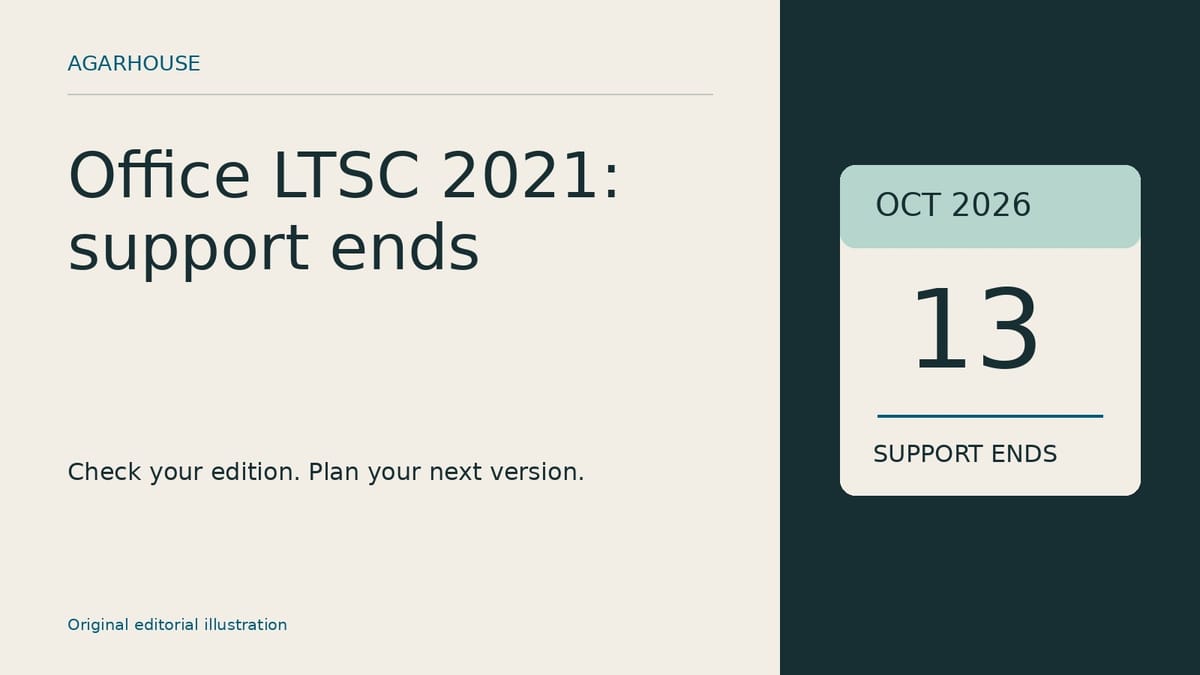
If your workplace still uses Office LTSC 2021, October 13 is the date to check with whoever manages your software. Microsoft says support ends on October 13, 2026. After that date, it will no longer provide technical support, bug fixes, or security updates for that version.
Your documents don't disappear, and the deadline doesn't suddenly switch off Word or Excel. The problem is what happens when someone finds a new security flaw. A working application and a supported application are different things.
Microsoft recommends moving to Microsoft 365 Apps. It also names Office LTSC 2024 as a supported on-premises upgrade path for commercial customers who aren't ready to move to the cloud. You have a decision to make, but a subscription isn't the only choice.
Start with the edition you actually have
Before buying anything, check the product information in an Office application and write down the full product name. A shortcut labeled Word won't tell you whether you're running Office 2021, Office LTSC 2021, or Microsoft 365 Apps.
Microsoft publishes separate guidance for the consumer Office 2021 editions and the commercially managed LTSC version. Its consumer guidance also tells Office 2021 owners to upgrade, says there will be no extended security updates, and advises people on work or school installations to contact their IT help desk.
If this is a company computer, don't install a replacement yourself. Ask which version is approved, when the upgrade is happening, and whether anything you use needs testing first. That includes the spreadsheet someone built years ago that still handles an important part of the business.
Choose around your files and workflow
For an organization staying with Microsoft's desktop software, compare the supported LTSC option with Microsoft 365 Apps. Start with the requirements you already have rather than the sales pitch: licensing, the operating systems you use, document compatibility, and whether staff depend on shared online services.
Before a wider rollout, test copies of representative files. Check complicated spreadsheets, macros, add-ins, templates, and printing. Open the files, make normal edits, save them, and reopen them. Simply seeing a document on screen isn't enough to establish that a business workflow still works.
Keep backups of important files before changing software. If you're considering a different office suite, run the same checks there. A cheaper replacement isn't much of a saving if it breaks the documents you exchange with customers.
Plan for interruptions as well as upgrades
The Register reported a Microsoft Global Secure Access connectivity problem on the same day as the LTSC deadline. Its report described trouble reaching services including Outlook, OneDrive, SharePoint Online, and Teams through that service.
That report isn't evidence that every Microsoft 365 user lost access, and it shouldn't be read as a live status update. It does give businesses a separate question to ask during migration: what work can continue if an online service or access system is unavailable?
Moving to a supported version addresses the Office support problem. Planning for an outage addresses a different one. Put both on the checklist, with a named person responsible for the upgrade and a date to finish it.

Comments ()