Stop Installing Into the Wrong Python: Use a venv Without Activating It
Install packages and run your code through the same Python. This walkthrough creates a project-local environment and checks the paths without activating it.
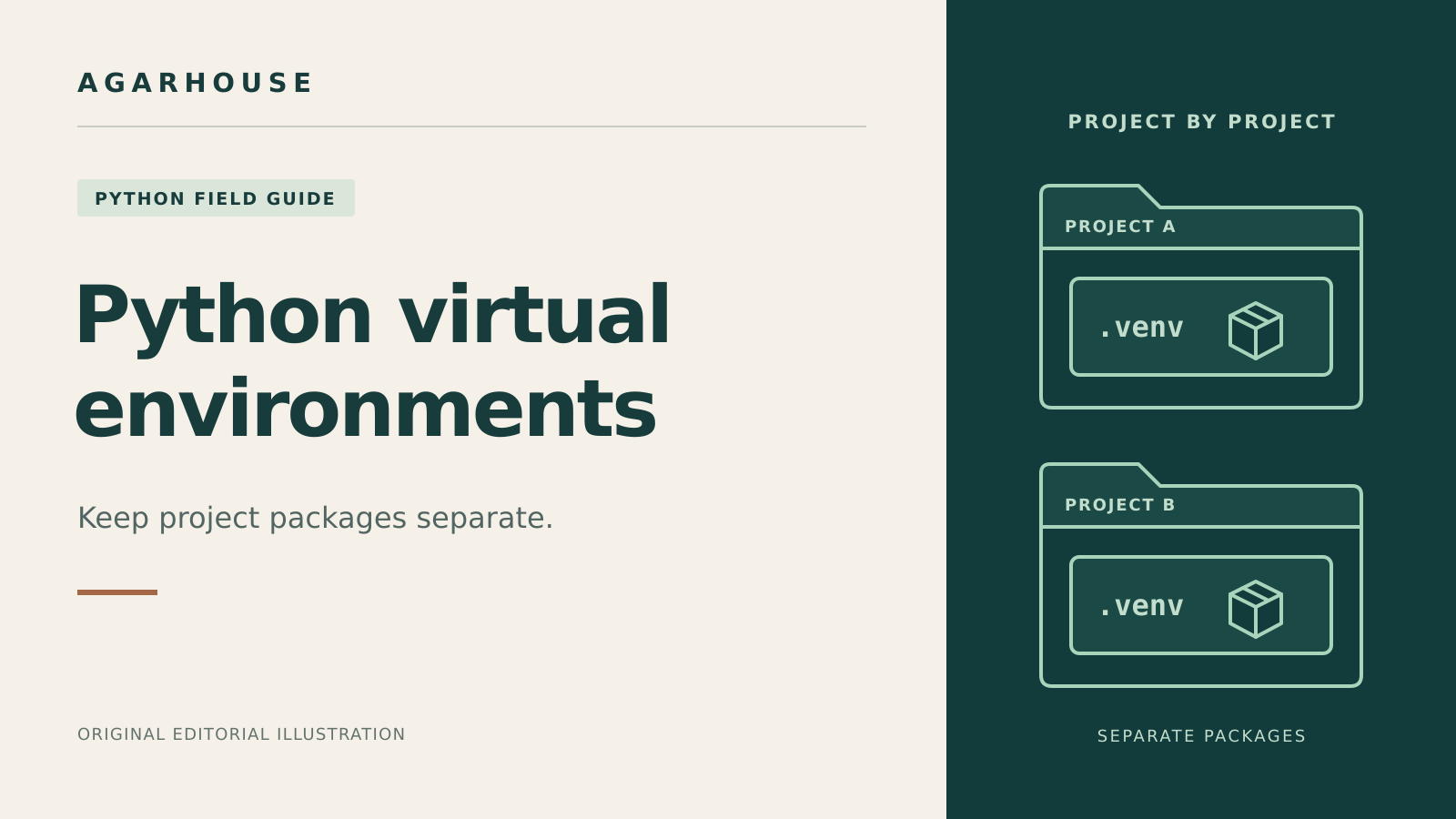
You install a package, pip reports success, and your script still stops with ModuleNotFoundError. One common explanation is that the installation worked, but it went into a different Python from the one running your script.
A virtual environment gives a project its own package installation directory. You can make the connection between that directory and your program explicit: run pip through the environment’s Python, then run your script through the same Python.
You do not have to activate the environment first. In this walkthrough, you will create a small project, install Colorama, and check the interpreter and package paths. The goal is to know where your code is running without relying on a terminal prompt that happens to say (.venv).
Before you start
- Have Python 3.12 or newer installed through a source you trust, with its
venvsupport available. This tutorial does not install or upgrade Python. - Use a writable folder for a new, disposable project and a text editor that can save plain-text
.pyfiles. - Use a Linux or macOS terminal for the commands labeled “Linux or macOS,” or Windows PowerShell for the Windows commands. Choose one set throughout; do not paste both.
- The package-installation step needs network access to a package index, usually the Python Package Index (PyPI). It writes into this project’s environment and may also use pip’s download cache. Administrator privileges are not needed.
Verification scope: Environment creation, interpreter selection, pip targeting, and package isolation were tested on Linux with CPython 3.12.14 and pip 25.0.1 using an offline test package. The public Colorama installation did not complete in that test environment, so the Colorama example below was checked against its documentation but not executed end to end. The macOS and Windows commands were not runtime-tested.
A virtual environment separates Python dependencies; it is not a security sandbox. An installed package still runs with your user account’s access to files and other resources. Only install packages you intend to trust.
1. Choose Python and make a fresh project
First, check the Python that will create the environment.
Linux or macOS:
python3 --version
python3 -c "import sys; print(sys.executable)"
Windows PowerShell:
py -3 --version
py -3 -c "import sys; print(sys.executable)"
If Windows cannot find py but you have a working python command, use python in place of py -3 for these checks and the environment-creation command in step 2. Check its version before continuing. Once the environment exists, use its explicit path as shown below.
Checkpoint: the version should be 3.12 or newer, and the next line should identify the Python executable. If a command is missing or the version is older, resolve that before continuing. Creating a virtual environment does not upgrade Python. If your project requires a particular installed version, select that interpreter at this step.
In a folder where you keep experiments, create a new directory. This command works in both terminal types:
mkdir agarhouse-venv-labRun that line on its own. If the directory already exists, stop and choose a fresh location rather than reusing someone else’s project or an earlier attempt. After creation succeeds, enter it:
cd agarhouse-venv-labKeep this terminal in that directory for the rest of the walkthrough. The relative paths below start from here.
2. Create the environment, then address it directly
Run the lines for your system one at a time, stopping if any line fails. Use the same Python command you checked in step 1 to create the environment.
Linux or macOS:
python3 -m venv .venv
.venv/bin/python -c "import sys; print(sys.executable); print(sys.prefix != sys.base_prefix)"
.venv/bin/python -m pip --version
Windows PowerShell:
py -3 -m venv .venv
.\.venv\Scripts\python.exe -c "import sys; print(sys.executable); print(sys.prefix != sys.base_prefix)"
.\.venv\Scripts\python.exe -m pip --version
The first line creates .venv inside the lab. The next two use the executable inside that folder instead of asking the shell to choose a bare python or pip command.
Checkpoint: the interpreter path should end in this project’s .venv/bin/python on Linux or macOS, or .venv\Scripts\python.exe on Windows. The comparison should print True. Pip’s version line should also point inside this project’s .venv. Your parent directory and pip version will vary.
The Python documentation explains both checks: activation is optional, and different values for sys.prefix and sys.base_prefix indicate that the interpreter is running in a virtual environment. Activation mainly makes the environment’s executable directory take priority when the shell looks up commands. Here, you supply that directory yourself.
You should not expect (.venv) to appear in the prompt. Nothing in this workflow depends on it.
3. Install a package through that Python
Colorama is a small library for terminal color support. We will use version 0.4.6 so the exercise requests a specific release rather than whichever release is newest when you read this.
Linux or macOS:
.venv/bin/python -m pip install "colorama==0.4.6"Windows PowerShell:
.\.venv\Scripts\python.exe -m pip install "colorama==0.4.6"The useful part is -m pip. It asks the specified Python to run its pip module, tying installation to that interpreter. This is the relationship described in pip’s guide to running pip.
Checkpoint: the command should finish without an error and report that Colorama 0.4.6 was installed or is already satisfied. Do not add sudo, switch to an administrator terminal, or use a system-package override if something fails. Check the error and the paths first.
A version pin keeps this example’s package choice specific. It does not make the package automatically trustworthy or guarantee an identical setup across every Python version and operating system.
4. Save a script that shows what is actually running
In your text editor, save the following as check_environment.py directly inside agarhouse-venv-lab, alongside .venv, not inside it. Make sure the filename does not end in .py.txt.
import sys
from importlib.metadata import version

print("Python:", sys.executable)
print("In a venv:", sys.prefix != sys.base_prefix)

import colorama

print("Colorama:", version("colorama"))
print("Imported from:", colorama.__file__)
print("This script can import Colorama.")
The first two lines of output identify the interpreter before the script tries to import Colorama. They remain useful if the import fails. Run the script from the same terminal using the same interpreter path.
Linux or macOS:
.venv/bin/python check_environment.pyWindows PowerShell:
.\.venv\Scripts\python.exe check_environment.pyCheckpoint: look for all of the following:
Python:points to this project’s environment executable.In a venv: Trueconfirms the interpreter is using a virtual environment.Colorama: 0.4.6matches the requested package version.Imported from:points to a Colorama file under this project’s.venv, usually within a directory namedsite-packages.- The last line reads
This script can import Colorama.
This gives you more useful evidence than the installation message alone. You have checked that the program which needs Colorama can actually import the copy installed for this project.
5. Check dependency consistency
One final command asks pip to check the installed packages’ declared dependencies.
Linux or macOS:
.venv/bin/python -m pip checkWindows PowerShell:
.\.venv\Scripts\python.exe -m pip checkCheckpoint: for this small environment, the expected result is No broken requirements found. According to the pip check reference, this checks whether installed packages have compatible dependencies. It does not test your whole program, audit packages for vulnerabilities, or prove that a package is safe.
If something goes wrong, check the paths first
“No module named colorama.” Check the script’s Python: line and run it with the environment command from step 4 rather than python check_environment.py. If it still fails, repeat step 2’s pip-location check and step 3’s install command. A successful installation into another interpreter will not help this one.
Your editor’s Run button still fails. The editor may use a different interpreter from your terminal. In the editor’s Python interpreter selector, choose this project’s .venv/bin/python or .venv\Scripts\python.exe. Use the script’s Python: line to verify the selection rather than assuming the editor followed your terminal.
The environment executable cannot be found. Confirm that your terminal is still inside agarhouse-venv-lab and that creation completed. Use pwd on Linux or macOS, or Get-Location in PowerShell, to see the current directory. A relative path such as .venv/bin/python only works when that environment exists beneath the current directory.
Creating the environment reports missing venv or ensurepip support. Some Linux distributions package that support separately. Follow your distribution’s instructions for the venv component matching your Python installation, then create the environment again. Do not replace the operating system’s Python to repair this lab.
Pip reports an externally managed environment. Recheck the command and interpreter path. A normal environment created for this lab should keep package installation separate from the system installation. Do not bypass the protection with --break-system-packages.
PowerShell blocks Activate.ps1. This walkthrough does not run that script. Use the .\.venv\Scripts\python.exe commands directly; changing execution policy is unnecessary for this workflow.
The download fails. A timeout, proxy error, certificate error, or unavailable package index is different from installing into the wrong Python. Address that network or index issue without disabling certificate verification. If you are on a managed computer, use the organization’s approved package source.
The import points to your own file. Do not name the script colorama.py or create a sibling folder named colorama. A local file can shadow the installed package. Keep the filename check_environment.py.
Clean up the lab, or keep the habit
There is nothing to deactivate because this walkthrough never activated the environment. If you activated it separately while experimenting, run deactivate in that terminal first.
If you want to remove the disposable environment, close any programs using it. Open agarhouse-venv-lab in your file manager, enable hidden-file display if necessary, and delete only the .venv folder created for this exercise. That removes the lab’s installed packages without uninstalling the base Python or deleting check_environment.py. The script will need Colorama installed in an environment again before it can run successfully.
If you no longer want the example, check that the lab contains no files you need, then delete the remaining script and lab folder.
For a real project, keep your source code and dependency instructions separate from the environment. Treat .venv as disposable rather than a folder to copy between computers or commit to version control. If you use Git, add .venv/ to the project’s .gitignore file unless the environment is already ignored.
The habit to carry forward is simple: install through a chosen Python, and run through that same Python. When the result is confusing, print the paths. They tell you more than a successful pip message or a familiar-looking prompt.
Sources
- Python 3.12 documentation: how virtual environments work. Interpreter layout, optional activation, environment detection, and portability limits.
- Python Packaging User Guide: installing packages using pip and virtual environments. Environment creation, package installation, and excluding environments from version control.
- pip User Guide: running pip through a specific Python interpreter. The relationship between
python -m pipand its selected interpreter. - pip command reference: pip check. What the dependency-consistency check verifies and its expected success message.
- PyPA specification: externally managed environments. Why system-managed Python installations direct project dependencies into virtual environments.
- Colorama 0.4.6 on PyPI: project documentation and release. The example package’s release and project documentation.
Comments ()